Archive for the ‘iPhone’ category

Addendum to Do Not Disturb

January 1, 2013

Happy New Year.

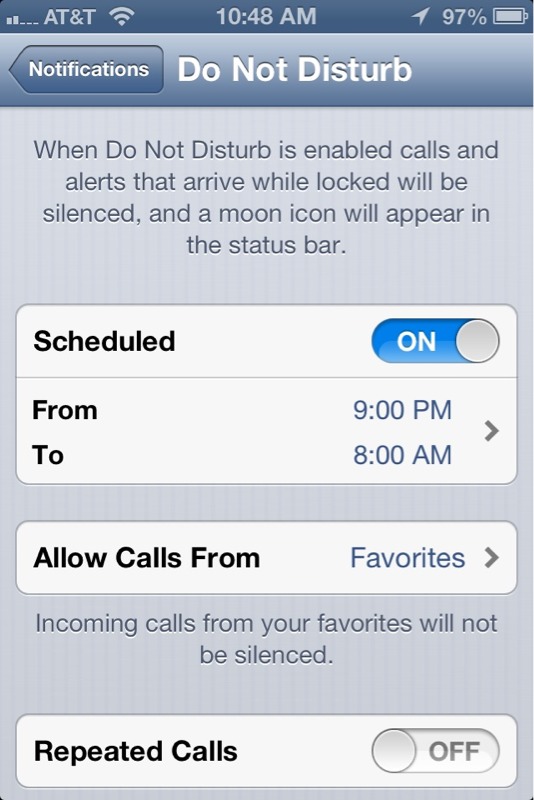
One more thing related to “Do Not Disturb”. You can automate the Do Not Disturb function. (Pointed out to me by one of my faithful blog readers.)

Go to the “Settings” App again.


Tap the “Notifications” button.


Then, tap the “Do Not Disturb” Button.


Swipe the “Scheduled” switch to “On”.

Then adjust the “From” time and “To” times to the times that you don’t want to receive calls.

There that was easy.

– Posted using BlogPress from my iPad

Location:San Pedro, CA

iOS V6 Tips and Tricks

December 31, 2012

Okay, you’ve got your shiny new iPhone or iPad and you’re trying to figure out all it can do. Right? Or maybe you’re thinking of upgrading to iOS v6.0. Here a few neat features and/or tricks.

First here’s a trick that showed up in iOS a while back. I don’t know when it first appeared. Maybe v5, I’m not sure. Sometimes it is useful to get a screen shot of your device. To do this, simultaneously push the start button and the power button. If you’ve done it correctly the screen should briefly flash solid white. Then bring up your pictures app. You should see the the screen shot image in the camera roll. Then you can copy to the clipboard or email the image. All of the screen shots in this post were generated using this method.

Do Not Disturb

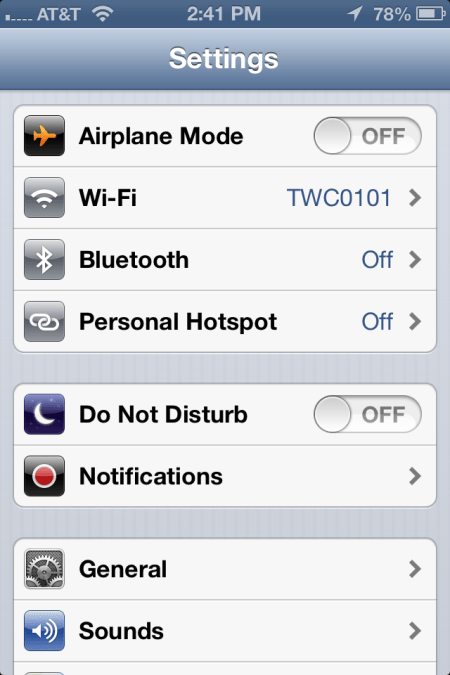
V6 added a “Do Not Disturb” feature. To turn on this feature, go to the “Settings” app. You should see something like the following:

2012-12-30 14.41.52

Swipe the switch on “Do Not Disturb” to on. Now your iPhone will only alert you for incoming text message, email, or phone calls from people on your “VIP List”.

To add someone to your VIP list, start your Contact App. Search for the person or company that you want to add.  Now suppose we wanted to add ‘Mickey Mouse” to out VIP list. Search for Mickey. You will see something like the following:

2012-12-30 15.19.55

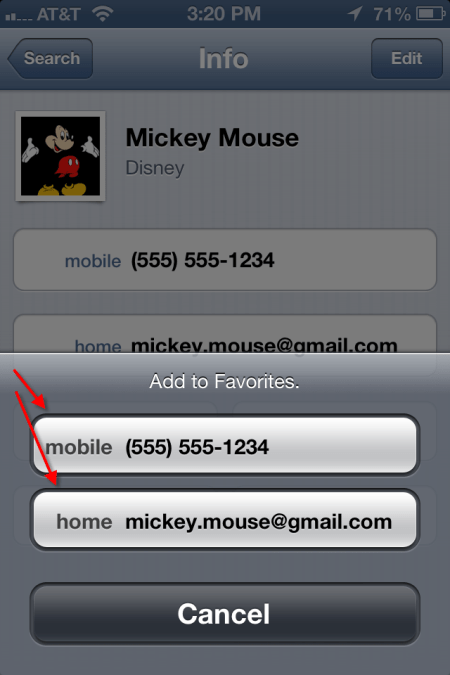
At the bottom of the screen, tap on the “Add to Favorites” button. You should then see a screen something like the following:

2012-12-30 15.20.46

Tap on each phone number or email address listed. When you add a phone number, it will ask you if it is for voice call or FaceTime. If there is only one address or phone number left to add, the iPhone will simply add it. Once completed, you will see little blue stars next to the phone or email address, like so.

2012-12-30 15.34.03

QR Codes

December 26, 2012

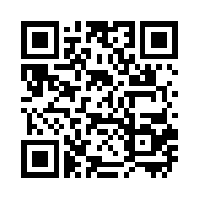
So what the heck is a QR Code? Maybe you’ve heard the term, maybe not. These days you see them everywhere. A QR code is that little square bar code thingy that one sees on advertising. Here’s an example:

qrcode.10492819

QR codes typically can be found in advertising, product labels and the like. Sometimes you might see them on the back of a business card. They can be used to store pointer to a web site (URL) or just plain text. QR codes on the back of business card usually contain contact information.

You can see QR codes just about anywhere. You see them in ads and on labels. I’ve seen them on billboards, though I don’t think bill board placement is particularly useful. How are you going to scan the code from a moving vehicle. You think that texting while driving is bad? Try reading QR codes while driving.

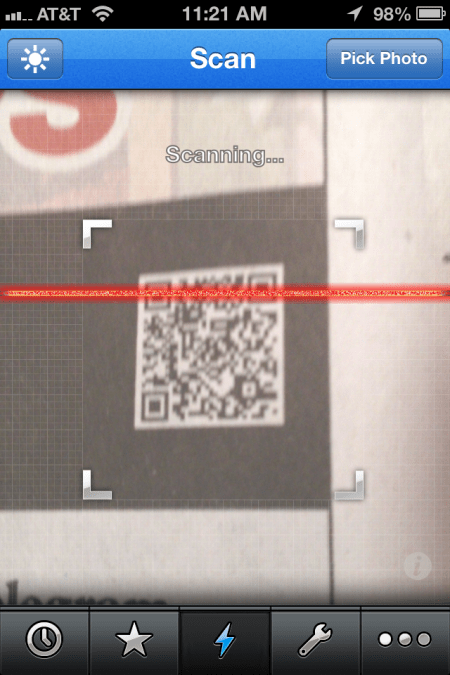
So how does one read and decipher a QR Code? First thing that you need is a smart phone. There are several apps for decoding QR codes, many of them free. The app uses your phone camera to scan the code and then decode it. The app that I use on my iPhone is called QRReader. There is a free version and a $.99 version. The free version has ads. You pay the $.99 to get rid of the ads. Fairly simple to use. Just start the app and line up your phone about 2-3″ from the add. As soon as the code is in focus the app beeps to let you know that it has been captured.

Here’s an image of the code being scanned:

2012-12-26 11.21.58

The app also has the capability to create a QR code. Also, there are a number of QR code generator web apps, most of them free. Here’s an web app that I’ve used at https://www.qrstuff.com You can either save your QR code as a JPEG file, email or print it.

There you have it. Now you can use QR codes to amaze and amuse your friends.

More Apps

December 26, 2012

Time to talk about some more iPhone and iPad apps. These are apps that I tend to use a lot and in no particular order. I will try to include a pointer to the app on the iTunes store and/or developer web site,

Genius Scan

Genius Scan utilizes the rear facing camera as a scanner. This is primarily an iPhone app, but it runs on any iPad with a rear facing camera. The app takes a picture using the camera, then it allows you to de-skew the image so that it is square. Here’s a couple of screen shots to explain what I mean.

Once you save the image as either color, b/w or greyscale, you can title, add tags, etc. Then you can either save to dropbox or email the document. There is a basic version (free) and a plus version ($2.99).

Waze

Waze is a GPS Mapping app. What makes Waze different from other mapping apps is that it free. Waze uses the network connection to update the Waze servers with information about traffic, road obstructions and police presence. It will suggests alternate routes when traffic is bogged down on your priority route. You can report accidents, slow downs and speed traps. You can optionally have those reports appear on Twitter and/or Facebook.

To use this app safely in a car, you will need to get some sort of windshield mount and a 12v power connector. You can find this stuff online at Amazon and other online etailers.

Here’s the iTunes link

Now for fun stuff. Let’s talk about games. Here are few of the games that I use to amuse myself when I’m bored and tired of reading.

Crosswords

Okay, I admit it. I’m a crossword puzzle junkie. The crossword puzzle app is called “Crosswords“. The Crosswords app automatically downloads passwords every day. You can choose which puzzles to download. If you have a subscription to crossword puzzle providers (like the NY Times puzzle) you can enter the username and password to download those puzzles.

You can also sync puzzles between IOS devices. You can start a puzzle on your iPad and finish it on your iPhone.

Word Warp

Word Warp is a word jumble game. Each round you are given six letters that you must unscramble into words. If you get any of the six letter words, you get to continue to the next round. Simple but amusing. Each round lasts 2 minutes. There is a free version with ads and a paid version without ads.

That’s enough for now. More post to come on apps.


Joe